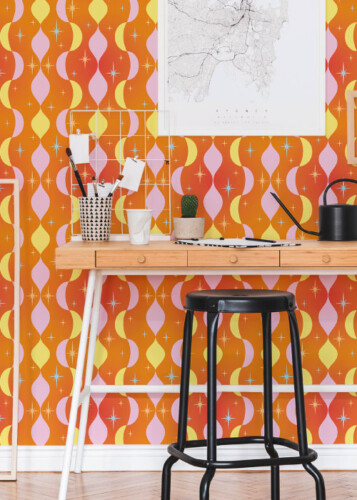
How to Make a Repeating Pattern In Illustrator

Step 1: Create Your Artwork
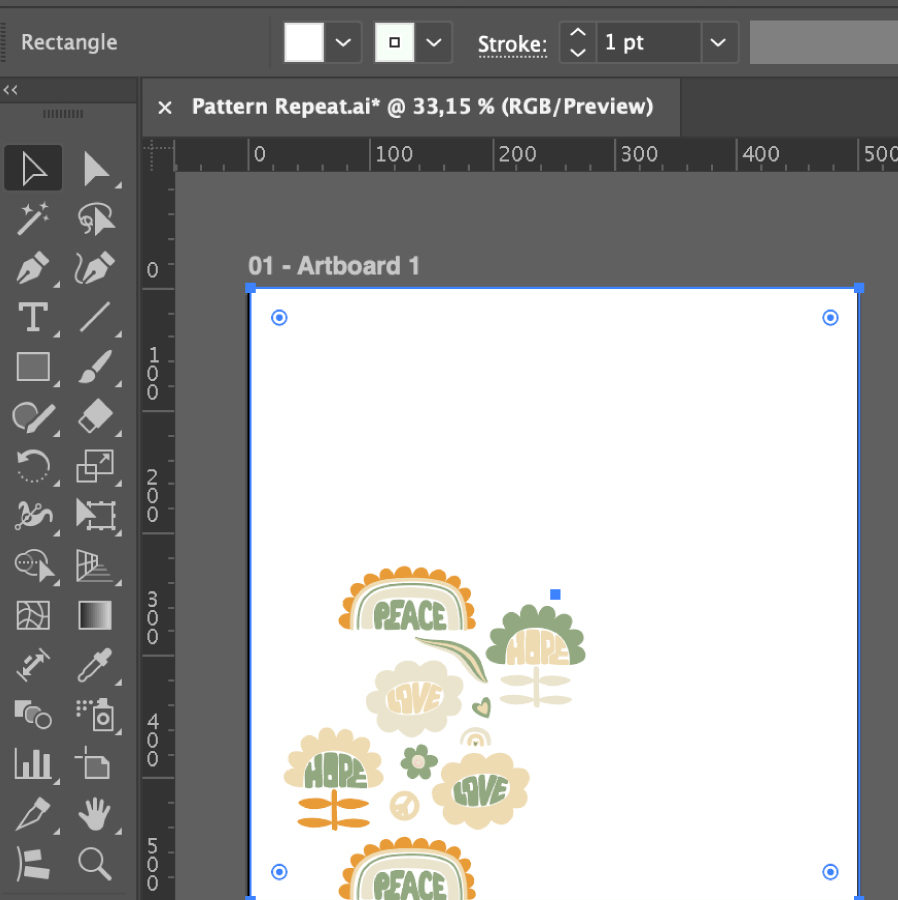
Draw or place the elements you want in your pattern (flowers, animals, geometric shapes, etc.).
Step 2: Make Sure All Elements are Selected
Select all the elements. To be extra sure they don’t move, group them by right-clicking and choosing the option group.
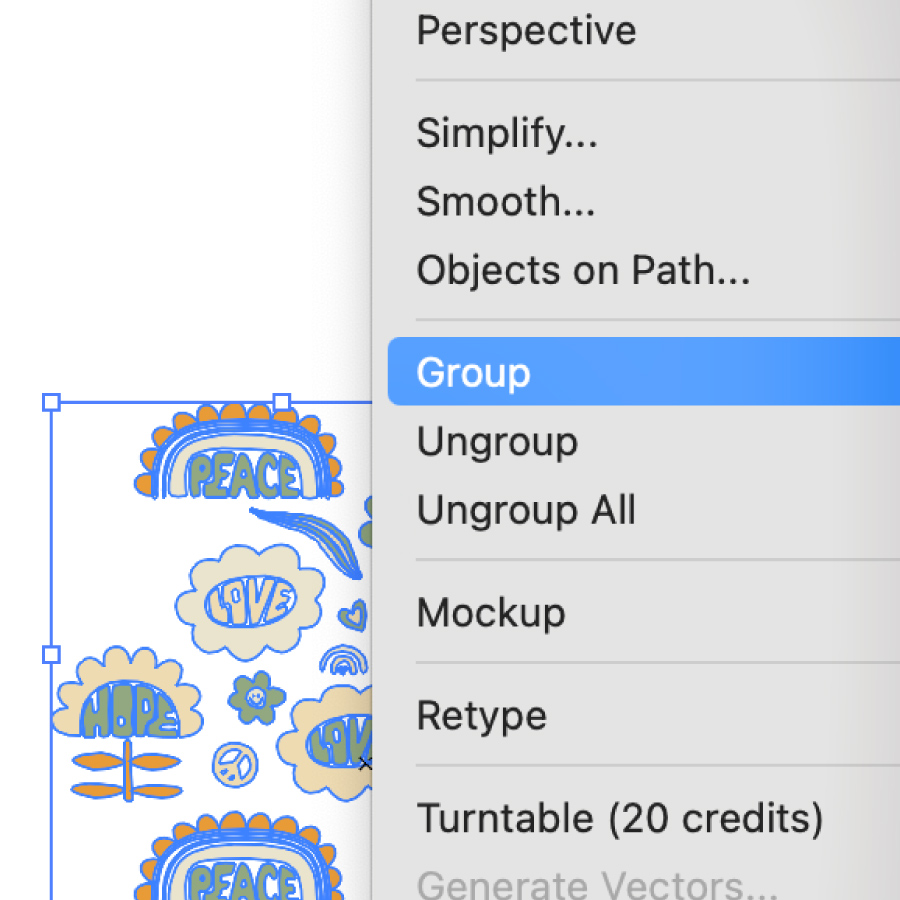
Step 3: Open the Pattern Tool
With your artwork selected:
- Go to Object → Pattern → Make
- Click OK when Illustrator prompts you to confirm that a new pattern swatch will be added.
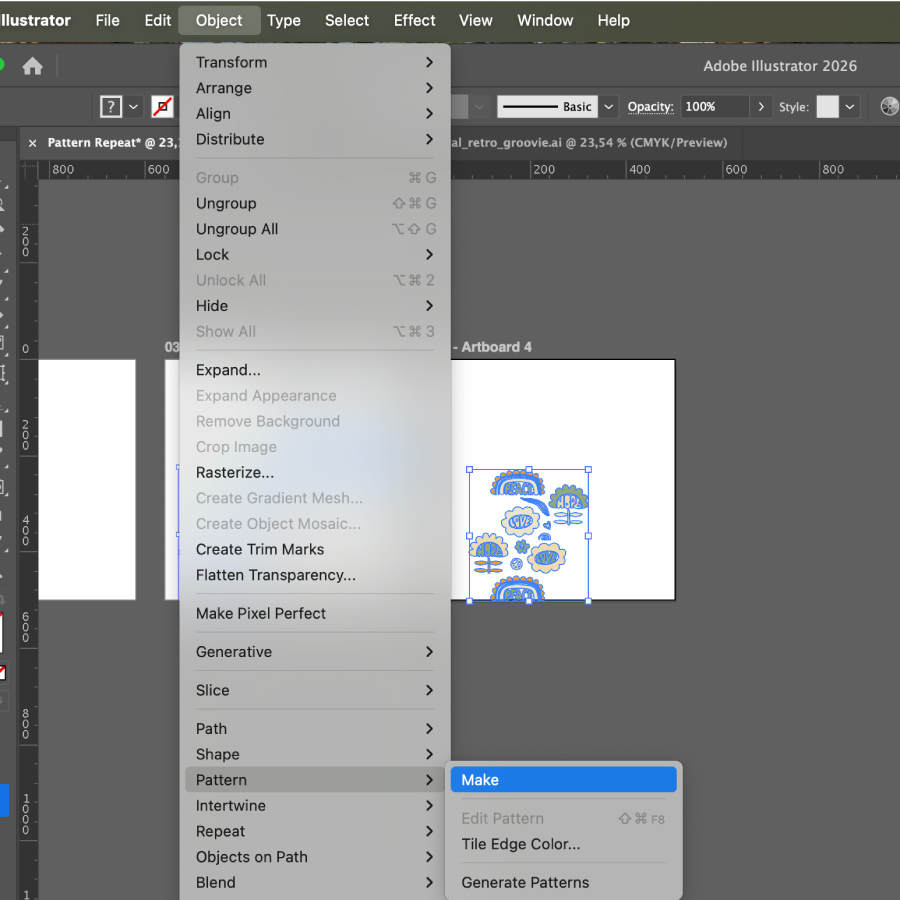
Step 4: Adjust Pattern Settings
The Pattern Options panel will appear.
Common settings:
Tile Type
- Grid (most common)
- Brick by Row
- Brick by Column
- Hex by Row
- Hex by Column
Width & Height – Controls spacing between repeats.
Overlap – Determines which objects appear on top when overlapping.
Copies – Set to 5×5 or higher to preview the repeat.
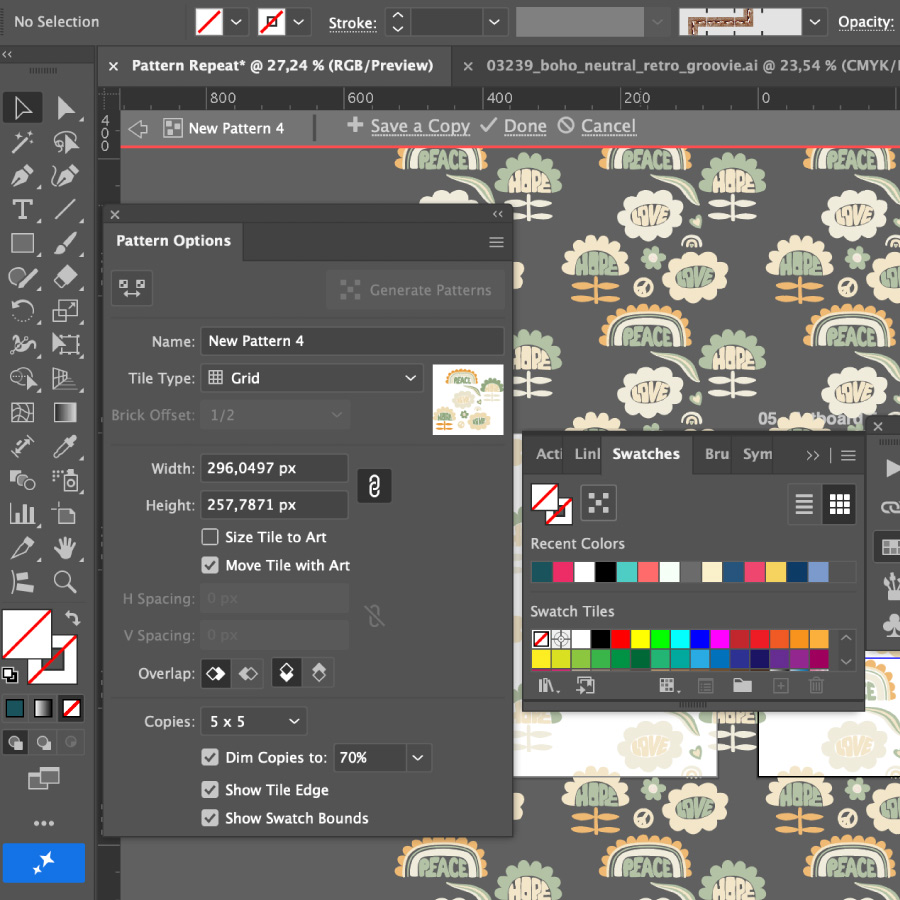
Step 5: Refine the Repeat
Move motifs around until the repeat looks balanced.
Things to check:
- No obvious gaps.
- No unintended clusters.
- Good visual flow across tile edges.
- Even distribution of colors and large elements.
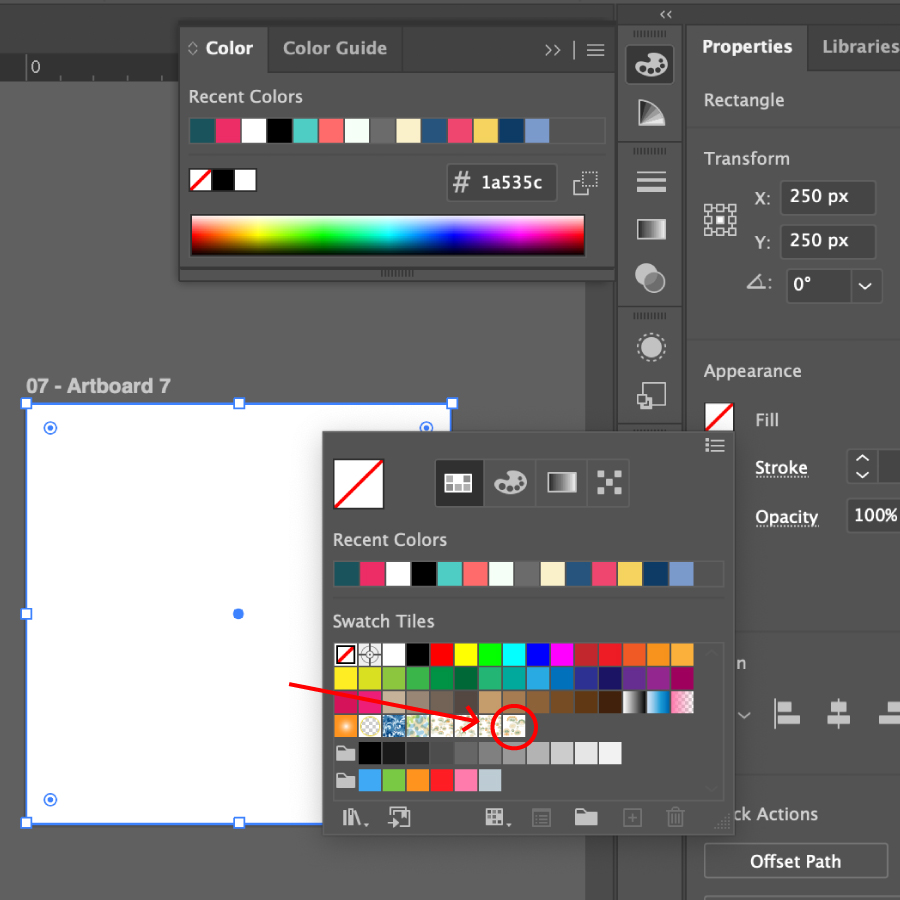
When satisfied, click Done at the top of the workspace. Illustrator automatically saves the pattern to the Swatches Panel.
Step 6: See the Pattern
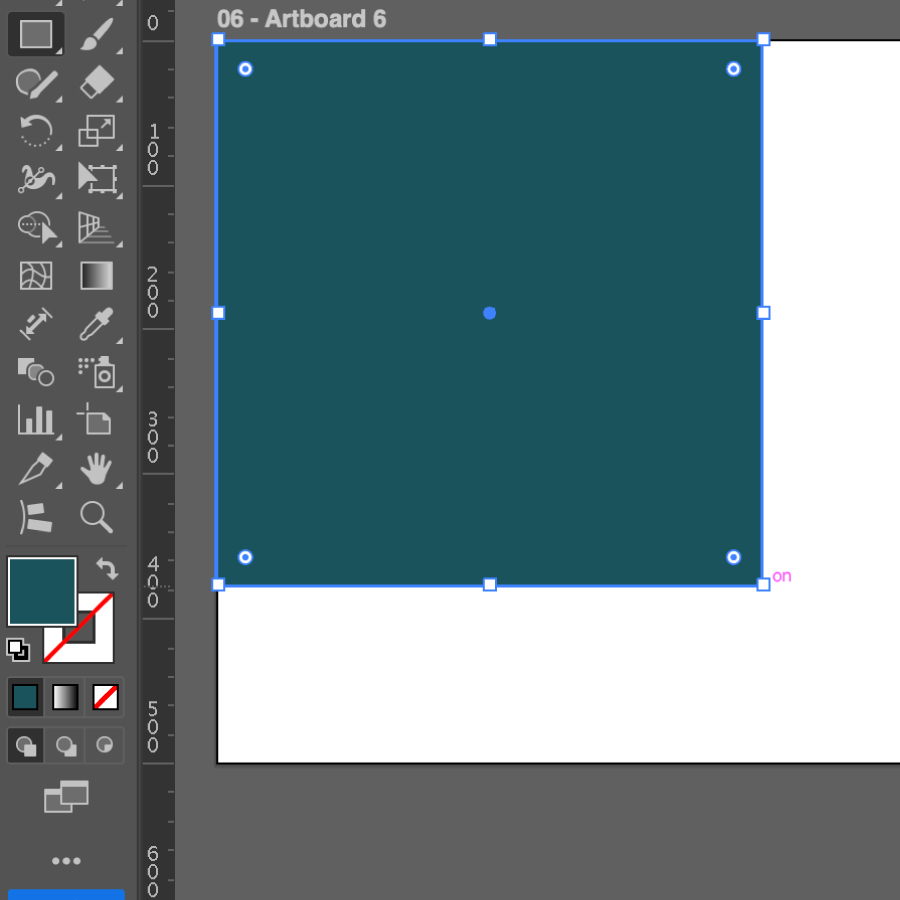
Create a large rectangle and fill it with your new pattern swatch.